
1. Find Sell on Socials and connect your Instagram under the Integrations tab.
*To enable this feature, you must configure your Instagram account as Business or Creator type.

2. Then, under the Share to Socials tab, find Instagram. The Auto-reply feature works for both Stories and Posts.

3. Auto-reply to IG story.
3.1 Click Edit story, you can choose to share your shop or share a product, then click Next.


3.2 Edit the product images you want to post to your story, up to 4 images. Then, you can click Preview to view your story content. Once you're sure everything is good to go, click Confirm.

3.3 If you don't want to use the default caption we provided, you can click Edit post caption to customize the content, then click Confirm.


3.4 Click the arrow icon below to enter the editing page for the auto DM content. Then edit the message and product information you want to send, and click Confirm when you're done.


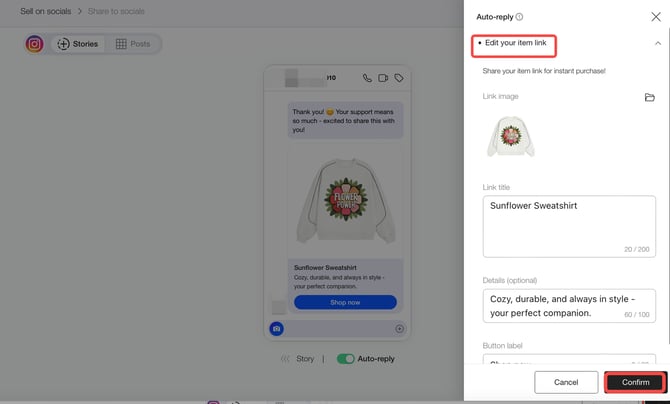
3.5 If everything is ready, click Share, and your story will be successfully shared!


4. Auto-reply to IG post.
4.1 The setup for auto-reply to post is similar to that for story. Choose the content you want to post and edit images and caption.
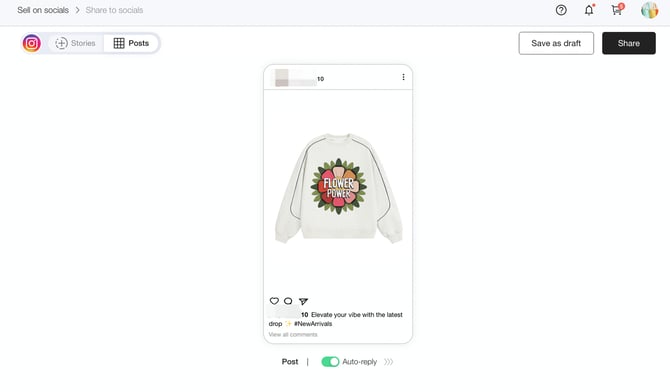 4.2 Set up the content for the auto-reply, including trigger words , DM messages, product images, details, and button text. You can also turn on the Auto-reply to comments button to enable automatic replies to fans who comment on your post. Then click Confirm.
*Auto-replying to followers' comments comes with risks. Click Learn More for details.

4.3 If everything looks good, click Share, and your post will be successfully shared!

