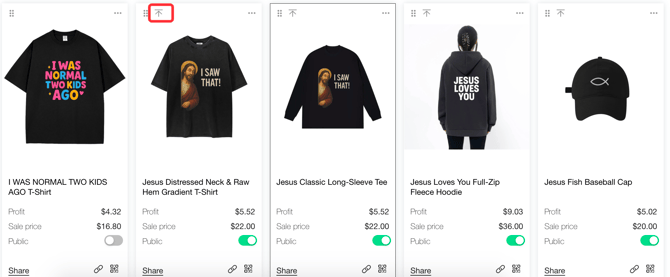
1. Visit the Website
Go to https://merch.voila.store/.
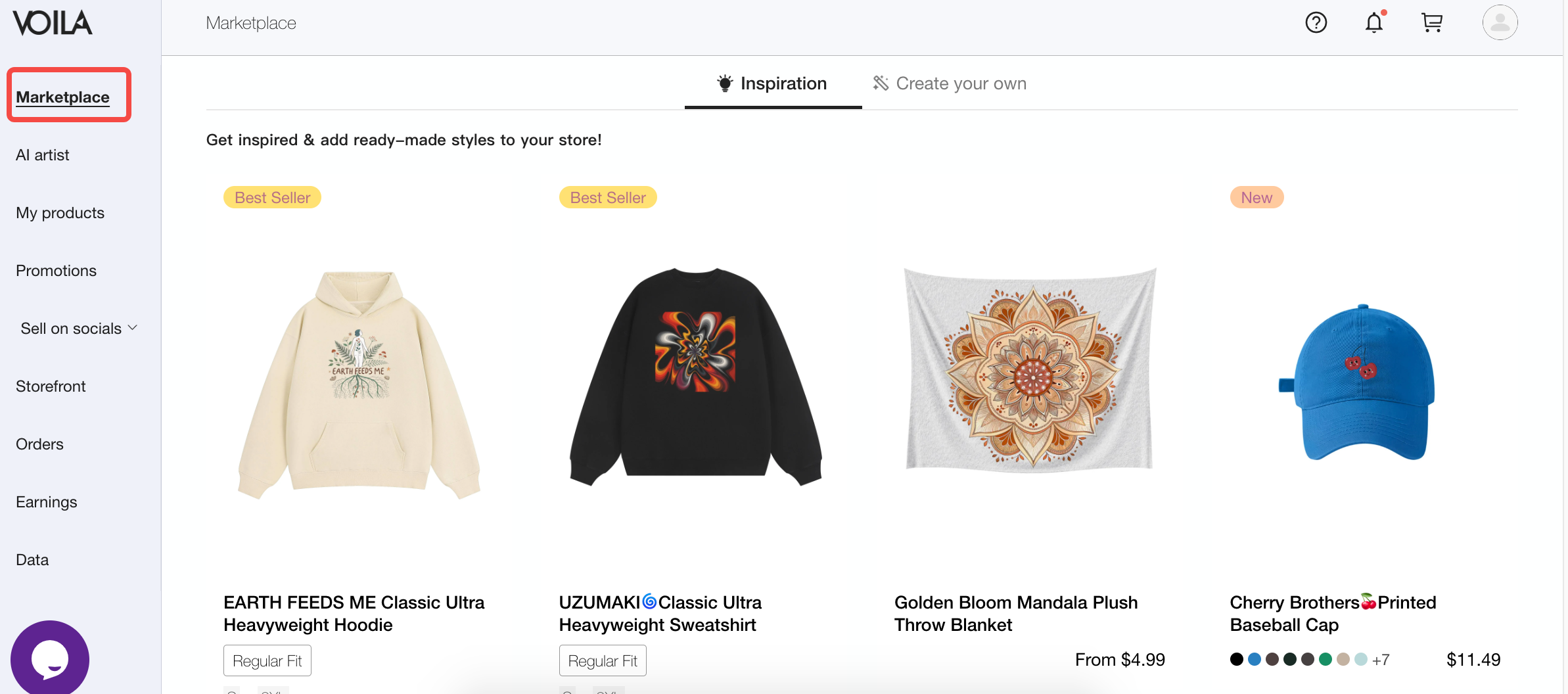
2. Select a Product from the Marketplace
Browse the marketplace and choose a product to customize.
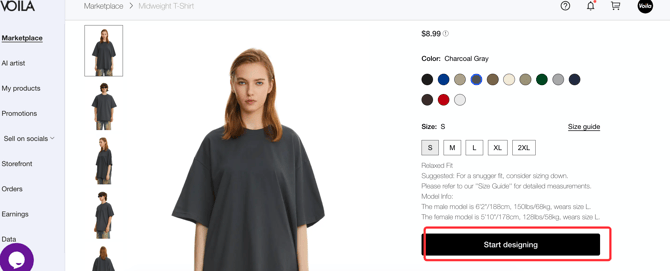
3. Customize and Design
Click Start Designing to personalize your product.
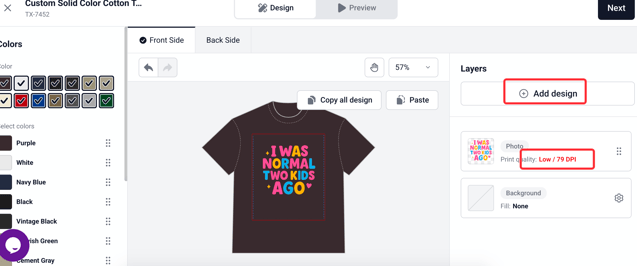
4. Upload Your Design
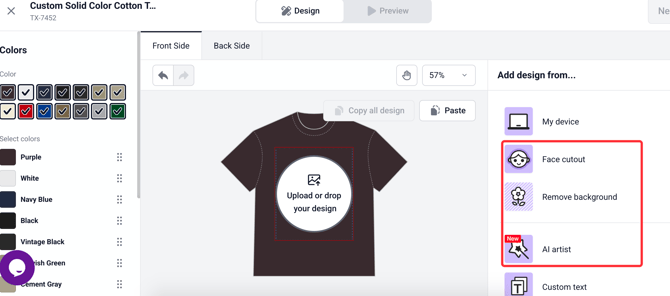
Upload your unique design, logo, or other images. You can add your design to the front, back, or both.
-
Tip: If your image quality is low, our system will alert you. You can adjust your image for better results.
-
We provide three design tools to help you:
-
Face Cutout: Automatically isolates the face from an image.
-
Remove Background: Isolates the face and body from the background.
-
AI Aritst: Simply describe your idea, and AI will automatically generate a custom design for you.
-
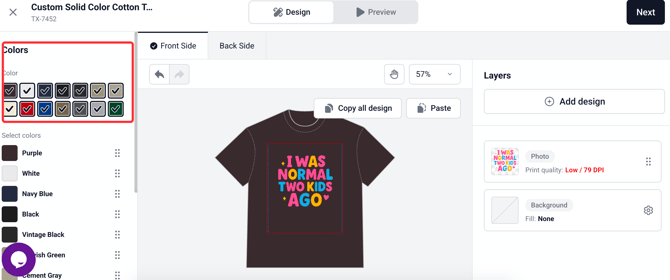
5. Choose Colors
Choose the colors you want to sell.
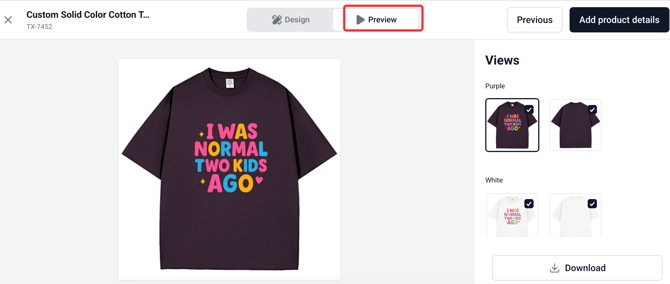
6. Preview your products
Click Preview to see how your design looks on different colors and select your favorites.
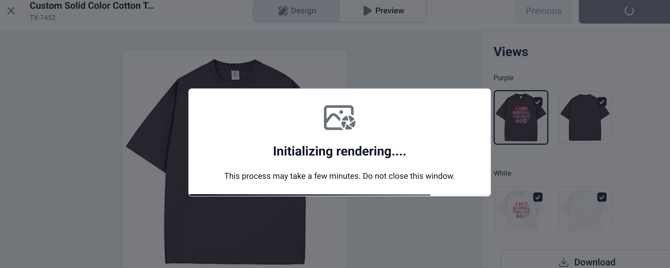
7. Add Product Details
When you're satisfied, click Add Product Details. The system may take up to 90 seconds to complete the initial rendering.
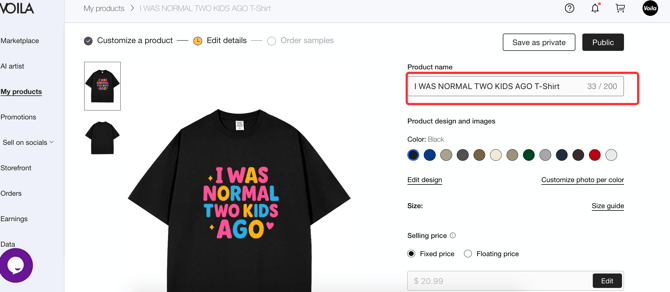
8. Name Your Product
Give your product a name once the design is finished.
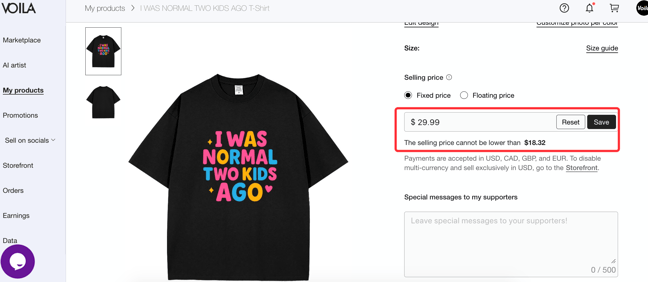
9. Set Your Price
You can set a single fixed price or vary the price based on color by clicking Floating Price. Even with the default pricing, you’ll make a profit.
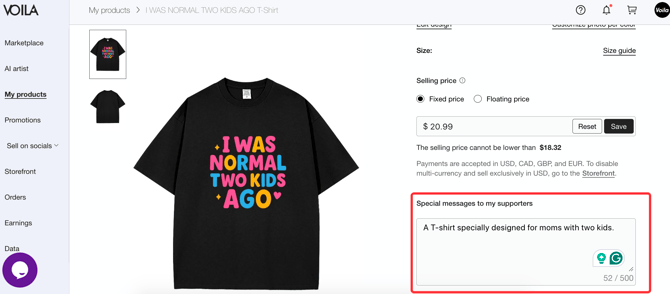
10. Add Messages For Your Supporters.
You can share your design inspiration or add extra details about the product.
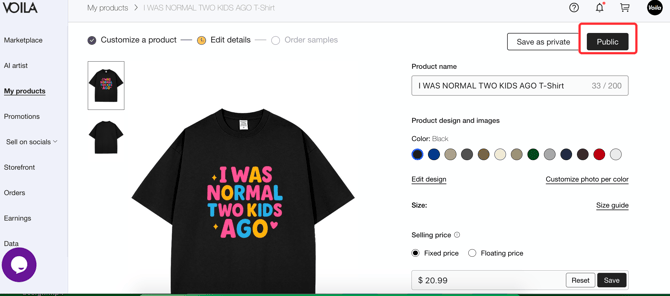
11. Publish Your Product
Click Public to make your product available for sale.
12. View All Products
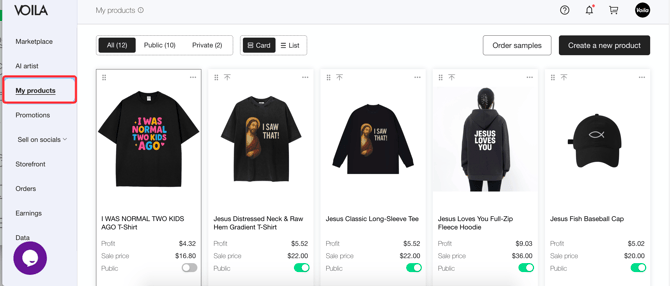
Click on My Products to see a list of all your products. You can toggle between list view and card view for easy browsing.
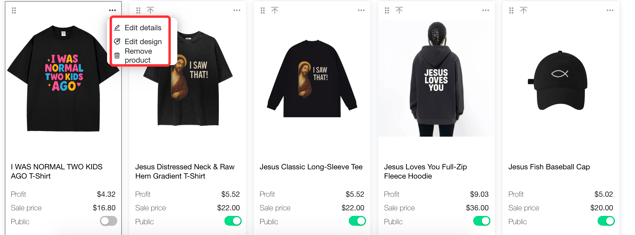
13. Edit or Delete
- To re-edit your design, click the Edit Design.
- To re-edit the product details, click the Edit Details.
- To delete a product, click the Remove icon.
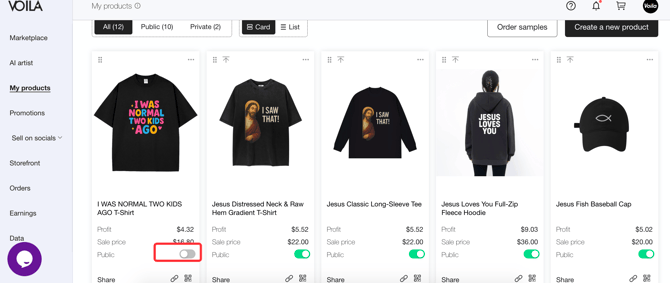
14. Publish/Unpublish
Toggle Public or Private to control whether a product is available for sale.
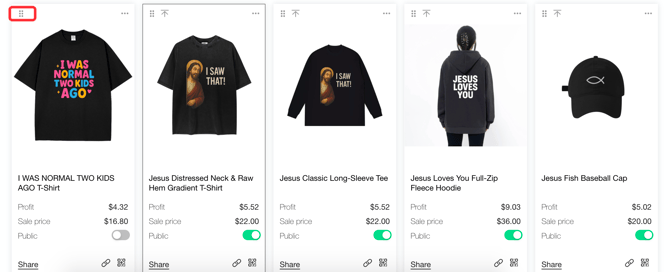
15. Organize Products with Drag-and-Drop Sorting
You can drag and drop products to reorder them, allowing you to display your preferred products at the top.
16. Pin Products to Top
If you want to keep a product always visible at the top, use the Pin to Top feature to highlight it.